Chapter 2 Three Ways to Enter Information — Voice, Documents, or Typing
The question How do I get my family's information in? Does it matter which way I choose?
The answer Two ways work today: describe your household in writing (your device's dictation can turn speech into that writing), or fill in the boxes yourself. The third way, uploading documents, is in beta testing as of October 2026, and values read from documents are not yet used in the calculation. When AI reads your description, you confirm each value before it is used, and values the AI is not sure about are left blank and asked again. So whichever way you enter, the same confirmed values give the same result.
2.0 In one line Ways in: three. Checkpoints: one. Nothing you speak or upload is calculated before you confirm it.
2.1 Three steps
Open the expert view's ⓪ Input tab and you will see three numbered steps across the top:
1 Input method → 2 Enter (type · speak · documents) → 3 Confirm
When you finish confirming, you move on to ① At a glance. The screen says so: "The same flow on desktop. When you finish confirming you move on to ① At a glance."
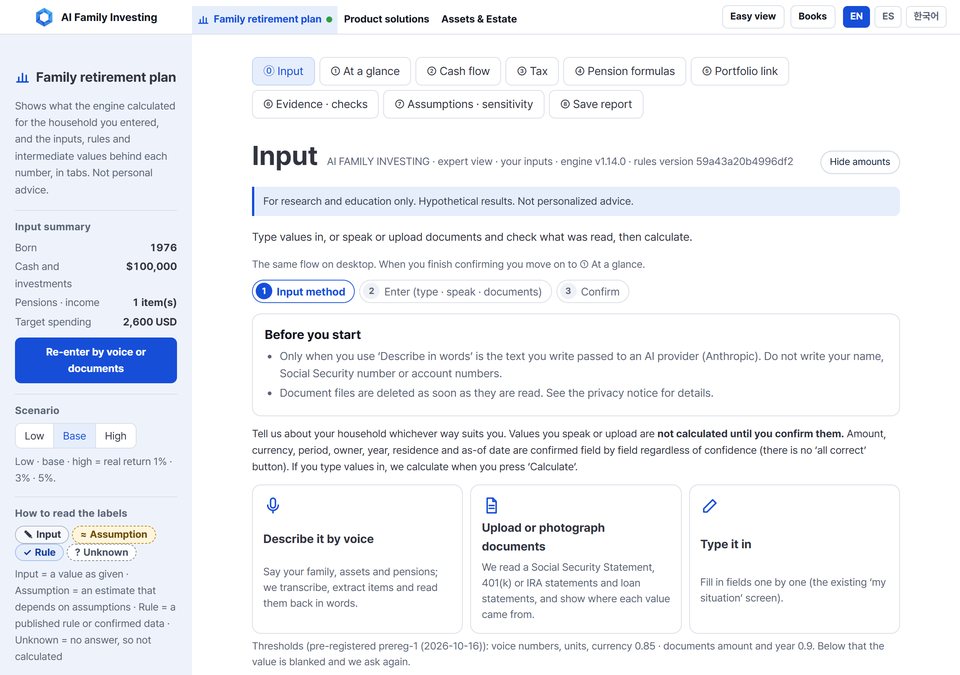
Figure 2-1. Input — choosing how to enter - What it shows The first step: the three-step bar, the "Before you start" notice, the three ways to enter, and the pre-registered confidence thresholds at the bottom. - How to read it Check where you are on the bar, read the notice, then pick one way in. The thresholds tell you when the AI will leave a value blank (Section 2.4). - What it does not say It does not rank the three ways. Spoken and uploaded values all go through the same checkpoint.
The screen states the point of this chapter plainly: "Tell us about your household whichever way suits you. Values you speak or upload are not calculated until you confirm them. Amount, currency, period, owner, year, residence and as-of date are confirmed field by field regardless of confidence (there is no 'all correct' button). If you type values in, we calculate when you press 'Calculate'."
Having no "all correct" button is slower, but it stops a misread amount from slipping into your results without your eyes on it.
| Describe it by voice | Upload or photograph documents | Type it in | |
|---|---|---|---|
| Handy when | You'd rather talk it through | You have statements in hand | You like to see each box |
| What the AI does | Pulls items from your words and reads them back | Reads the document and shows where each value came from | Nothing |
| Status (October 17, 2026) | Available | In beta testing — values read from documents are not yet calculated | Available |
| Sent to an outside AI provider | Your masked description, only if you agree (Anthropic) | See the privacy notice (Section 2.5) | Nothing |
| Checkpoint | Each value confirmed | Each value confirmed | Values as you typed them |
This chapter covers the two ways that work today first — describing and typing — and keeps the documents route, still being tested, in Section 2.5. If you have statements in hand, the reliable route for now is to read them and type the numbers in.
2.2 Describe it by voice — write it, and AI reads it into items
Choose "Describe it by voice" and a large text box opens. The screen explains: "Write about your household and AI reads it into items. Calculation happens only after you check each value below yourself."
Despite the name, the site does not listen to your voice itself. The flow today is: write (or dictate on your device so it becomes text) → "Read with AI" → confirm each value → calculate.
- Write your description in the box. Explain it the way you would to a friend: when you were born, where you live, what you have saved, which pensions you expect and from what age.
- Tick "I agree that my description, with personal details masked, is sent to an external AI service." It is your consent to send the text out. Tick it only if you agree.
- Press "Read with AI."
- In the next step (3 Confirm), confirm the values one by one (Section 2.4).
"Clear input and results" wipes what you wrote and the results. A note below says that AI reading accuracy is checked with statistics on whether values were edited — the values themselves are not recorded.
Do not write names, Social Security numbers, ITINs, account numbers, addresses or phone numbers. Do write the amounts, years, pension types and other plain facts the calculation needs. The site is designed to mask such things before sending, but masking recognizes only fixed patterns and is not perfect (Chapter 17). "Me," "my wife," "our oldest" is all the calculation needs.
Prefer to talk? "If you want to use your voice" explains how to turn on your device's own dictation (on a PC, click the box and press Windows + H, or press fn twice on a Mac; on a phone, use the keyboard's microphone). As the screen notes, your device's dictation may send your voice to that device's provider. Fix the transcribed text in the box, then press "Read with AI."
2.3 The "Describe in words" screen
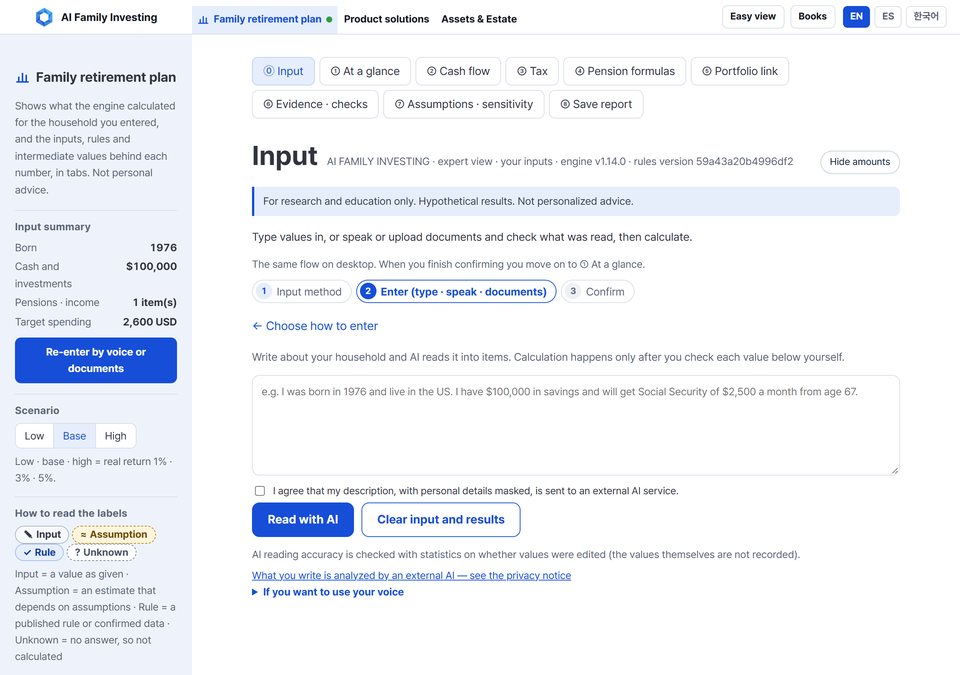
Figure 2-2. Describe it by voice — the writing box - What it shows The box for describing your household, the consent line, the "Read with AI" and "Clear input and results" buttons, and the voice-dictation help. - How to read it Write, tick the consent line only if you agree, then press "Read with AI." The values come back in the next step for you to confirm one by one. - What it does not say Nothing is calculated on this screen. The help chat at the bottom right is a separate route to a different AI provider (Chapter 17).
When the AI is not sure about a number — a monthly pension amount, say — the site does not fill it in with its best guess. It leaves the value blank, says which item it could not create because of that, and asks you to correct what you wrote. If it shows a candidate, the candidate is for reference only; it is never used as your value.
2.4 Confirm — check each value; anything missing gets a question
Voice and documents both lead to step 3, Confirm. Values arrive grouped by item, marked as not yet checked by you. In the four-label system from Chapter 1, they are not yet "Input."
Each value has five parts:
| Field | Value | Confidence | Source | Confirm |
|---|---|---|---|---|
| What it is (e.g., amount) | What was read | How sure the AI says it is | Which words or which part of the document it came from | The button you press |
The Source is what makes this site different. From your description, it quotes your words; from a document, it points to the place on the page. A value with no source does not go onto the ledger.
When values are left blank. Figure 2-1 lists the thresholds registered in advance on October 16, 2026: numbers, units and currency from voice below confidence 0.85, and amounts and years from documents below 0.9, are left blank and asked again. They are called "pre-registered" because they were fixed before any results were seen (Chapter 7).
Follow-up questions. A blanked value comes back as a question that says what is missing or why it is unclear, with a field to type the right value. The kinds of question (missing, more than one reading, values that conflict) return in Chapter 3.
When the calculation runs. The bottom of the screen shows how many values you have confirmed and how many questions remain. Only when everything is confirmed and no questions remain does the calculate button work. Until then, no numbers appear.
Words worth knowing — confidence A number between 0 and 1 that the AI gives for each value it reads; closer to 1 means the AI itself is more sure. Confidence is a signal the AI outputs; it is not guaranteed to equal the actual chance of being right. 0.85 does not mean "right 85% of the time." A high score can still be wrong, so the site asks you to confirm amount, currency, period, owner, year, residence and as-of date no matter what. Confidence is used only to decide whether to leave a value blank.
2.5 Upload or photograph documents — in beta testing
First, where this stands. As of October 17, 2026, uploading documents is in beta testing. You can see the screen for choosing a document, but using values read from documents in the calculation is still being tested. The site's privacy notice also treats document input as a feature in preparation (Chapter 17, Section 17.6). What follows describes how the feature is designed. If you have statements in hand today, use "Type it in" (Section 2.6).
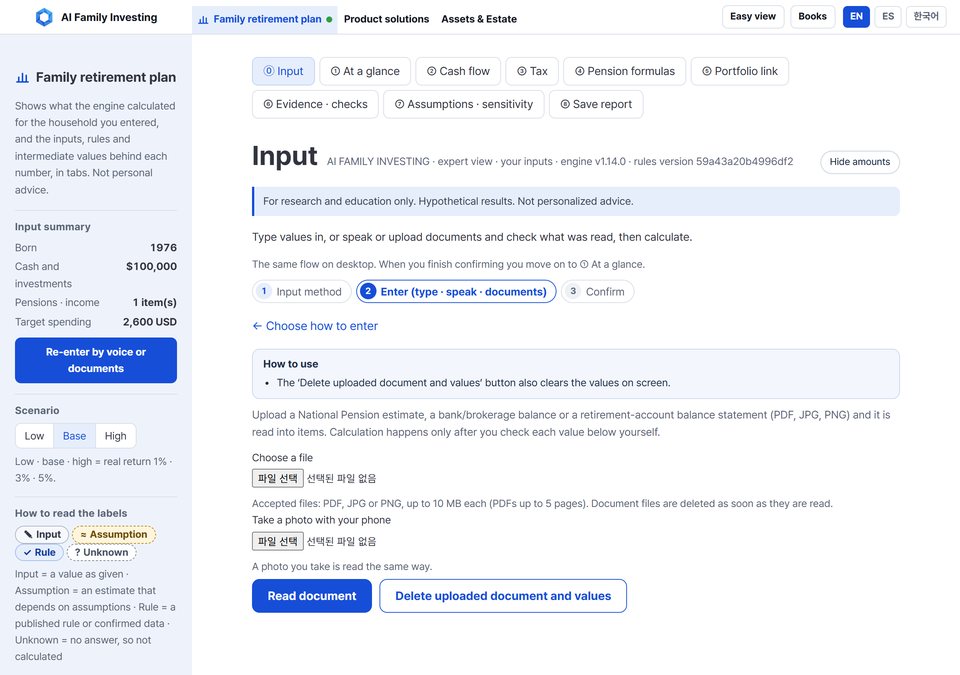
Figure 2-3. Upload or photograph documents - What it shows The document screen: how-to note, "Choose a file," "Take a photo with your phone," and the "Read document" and delete buttons. - How to read it Pick a file or take a photo and press "Read document"; the values would go to step 3 for checking. The delete button clears them from the screen. - What it does not say It does not read every kind of document — only those named on the screen.
The English screen names the documents it is designed to read: a Social Security Statement, 401(k) or IRA statements and loan statements, as PDF, JPG or PNG.
- Where each value came from. Every value read from a document carries its location on the page, so you can check it against the paper.
- Low confidence. Blurry photos or overlapping text produce low confidence; those values are left blank and asked.
- Deleting. The site is designed to delete document files as soon as they are read, and the buttons clear the values from the screen.
When the document feature is switched on, the screen and the privacy notice will change first. Check them before you upload anything.
2.6 Type it in — one box at a time
"Type it in" fills the boxes directly. No AI is involved, so nothing goes to an outside AI provider, and what you type is your "Input" (✎). To calculate, your values do go to the site's own calculation engine (the site's server); Chapter 17 explains the difference.
At the top you choose:
- Default set (residence) — "US resident (USD)" or "Korea resident (KRW)." It sets the starting country, currency and cards of new items you add. As the screen says, "Items already entered keep their own country and currency; nothing is converted."
- Show results in — dollars, for this book's households.
Then the basics: birth year, where you live, your state, citizenship, and the ages you start and stop spending from savings. "+ Spouse" and "+ Child" add family members; no names are asked.
The screen says: "Entered values are not stored and disappear when you refresh." The site is designed not to keep household inputs on its server's disk or database (Chapter 17). To keep a result, save a report (Chapter 8) or write your numbers down.
Chapter 3 fills in the rest of the boxes.
For families with ties to two countries. Each asset and debt can carry its own country and currency. On the October 17 screen the country and currency choices are the US and Korea. Until a Mexico or Latin America pack is available, enter assets abroad in dollars at a rate you note down, and remember that the result does not include foreign taxes or currency risk (Chapters 7 and 16).
2.7 Showing the screen to someone — Hide amounts
Every tab has a "Hide amounts" button next to its title. Press it and the amounts blur while the layout and wording stay readable; the button changes to "Show amounts." From the October 17 version, the amounts in the left-hand Input summary are blurred too.
It is a blur, not a security feature, and it does not hide amounts in a saved PDF report or CSV file. Before you share your screen, glance over it for any numbers still showing.
Before you go on
- Two ways work today — describe and type. Uploading documents is in beta testing.
- Ways in: three. Checkpoints: one. Amount, currency, period, owner, year, residence and as-of date are confirmed one by one — there is no "all correct" button.
- Low-confidence values are left blank and asked. Guesses are shown for reference only.
- Never enter names, government ID numbers, account numbers, phone numbers and full addresses; do enter the amounts and dates the calculation needs. In this chapter, what goes to an outside AI provider is your masked description, only if you agree (Anthropic). Typed values do not go to an outside AI provider. The help chat goes separately to Google Gemini (Chapter 17).
- Inputs are designed not to be kept on the server; refreshing clears them.