Chapter 1 Getting Started — Finding Your Way from the First Screen
The question What do I see when I first open the site, and what do I choose first?
The answer On the first screen you make two choices: how to enter your information (by voice, from documents, or by typing) and which view to use (easy or expert). Inside, three menus run across the top — Family retirement plan, Product solutions, and Assets & Estate — and this book's three parts follow the same order. Whichever way you come in, nothing is calculated until you confirm the values.
1.0 In one line Two choices, three menus, and no calculation until you confirm.
1.1 The first screen — "How would you like to start?"
When you first arrive, a short welcome screen (the intro) comes up. Under the large headline, "Protecting your family's assets across borders," one line says what the site does: "Pensions, accounts and homes in several countries are calculated as one household." It is the same line as on this book's cover.
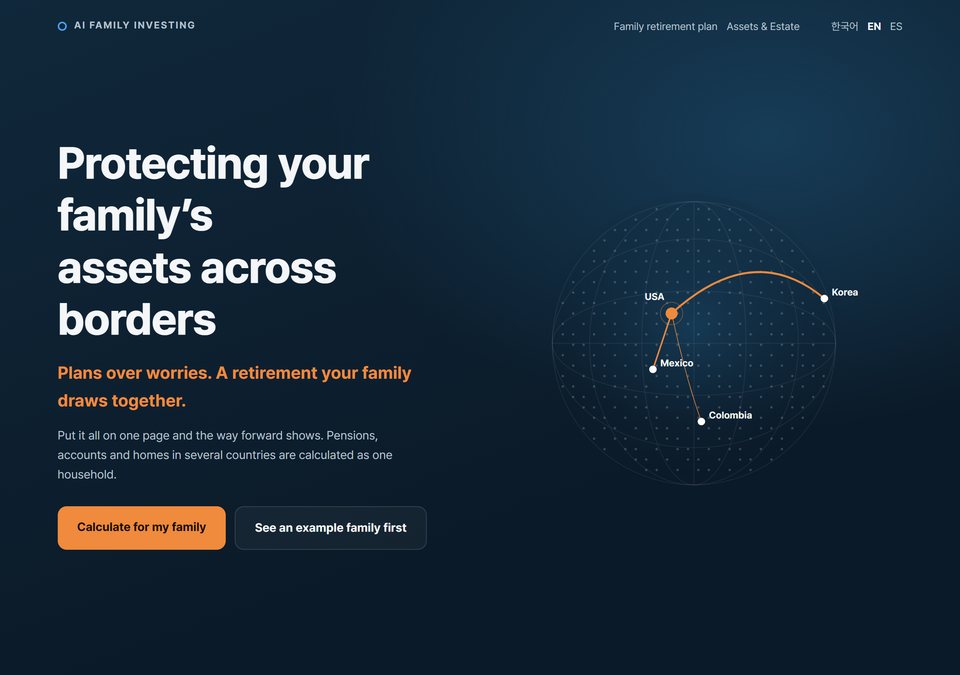
Figure 1-0. The welcome screen (intro, desktop) - What it shows The site's first impression: the headline and one-line description, two buttons ("Calculate for my family" and "See an example family first"), and a globe marked USA, Korea, Mexico and Colombia. - How to read it To start with your own family, press "Calculate for my family"; it takes you to the screen in Figure 1-1. To see what comes out first, press "See an example family first"; it opens the example household's results (Section 1.3). - What it does not say The countries on the globe stand for the regions the site aims to serve. They do not mean all four countries are calculated in equal depth. Today the calculations center on the United States and Korea (Chapter 17, Section 17.9).
"Calculate for my family" leads to the screen below, "How would you like to start?"
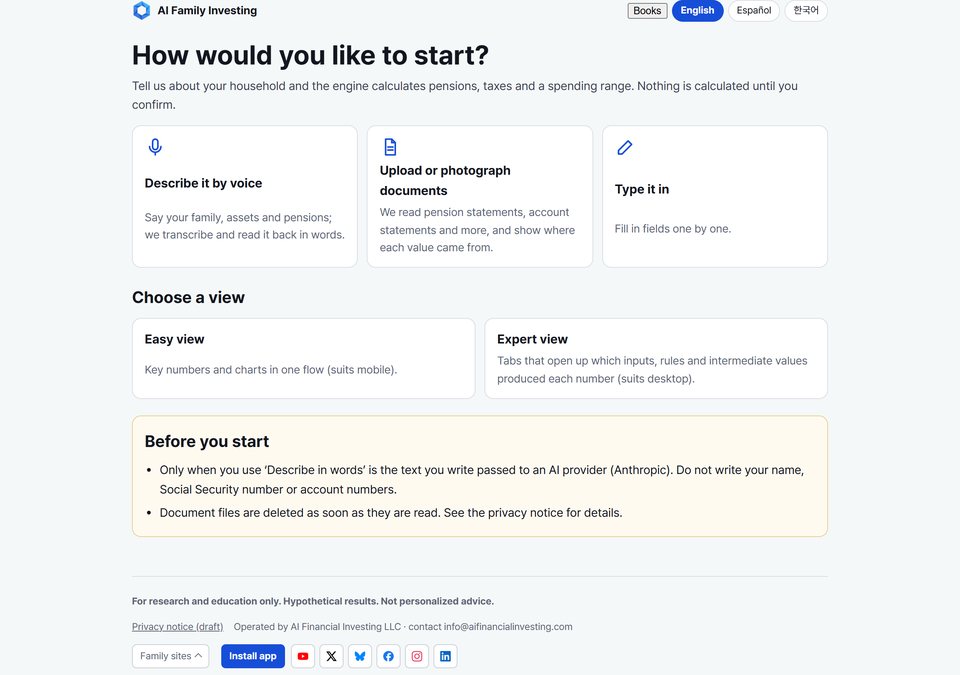
Figure 1-1. The first screen (desktop) - What it shows The screen you see when you first arrive: three ways to enter information, two views to choose from, and a short "Before you start" notice. - How to read it Read from top to bottom. The two choices are independent: whichever way you enter, you can view the results in either view. - What it does not say Nothing has been calculated yet. There is no result and no recommendation on this screen.
The big line on the screen is a question: "How would you like to start?" Under it, the site explains what it does in one sentence: tell it about your household and the engine calculates pensions, taxes and a spending range — and nothing is calculated until you confirm.
| Way to enter | Handy when | What the screen says | Status (October 17, 2026) |
|---|---|---|---|
| Describe it by voice | You'd rather talk it through | Say your family, assets and pensions; we transcribe and read it back in words. | Available (write, or use your device's dictation) |
| Upload or photograph documents | You have statements in hand | We read your documents and show where each value came from. | In beta testing — values read are not yet calculated |
| Type it in | You like to see each box | Fill in fields one by one. | Available |
Chapter 2 walks through each one. On a phone, the same screen stacks into a single column with the same wording.
1.2 Three menus — the three parts of this book
Once inside, three menus run across the top.
| Menu | What you do there | In this book |
|---|---|---|
| Family retirement plan | Enter your household and see how much you can spend each month, and why | Part 1 (Chapters 1–8) |
| Product solutions | See the types of financial products that match what your plan needs, and where each one falls short | Part 2 (Chapters 9–10) |
| Assets & Estate | See what you own, and how taxes are structured when you pass it on, give it while living, or own or sell your home | Part 3 (Chapters 11–16) |
All three menus share the same household. What you enter in the family retirement plan feeds "What your plan needs" in Product solutions and "What you own" in Assets & Estate. So start with the family retirement plan. This book does too.
1.3 Easy view and expert view
The site shows the same results in two forms.
- Easy view — key numbers and charts in one flow. Suits a phone.
- Expert view — tabs that open up which inputs, rules and intermediate values produced each number. Suits a computer.
The numbers are the same in both. Only the depth changes. A button at the top right switches between them at any time.
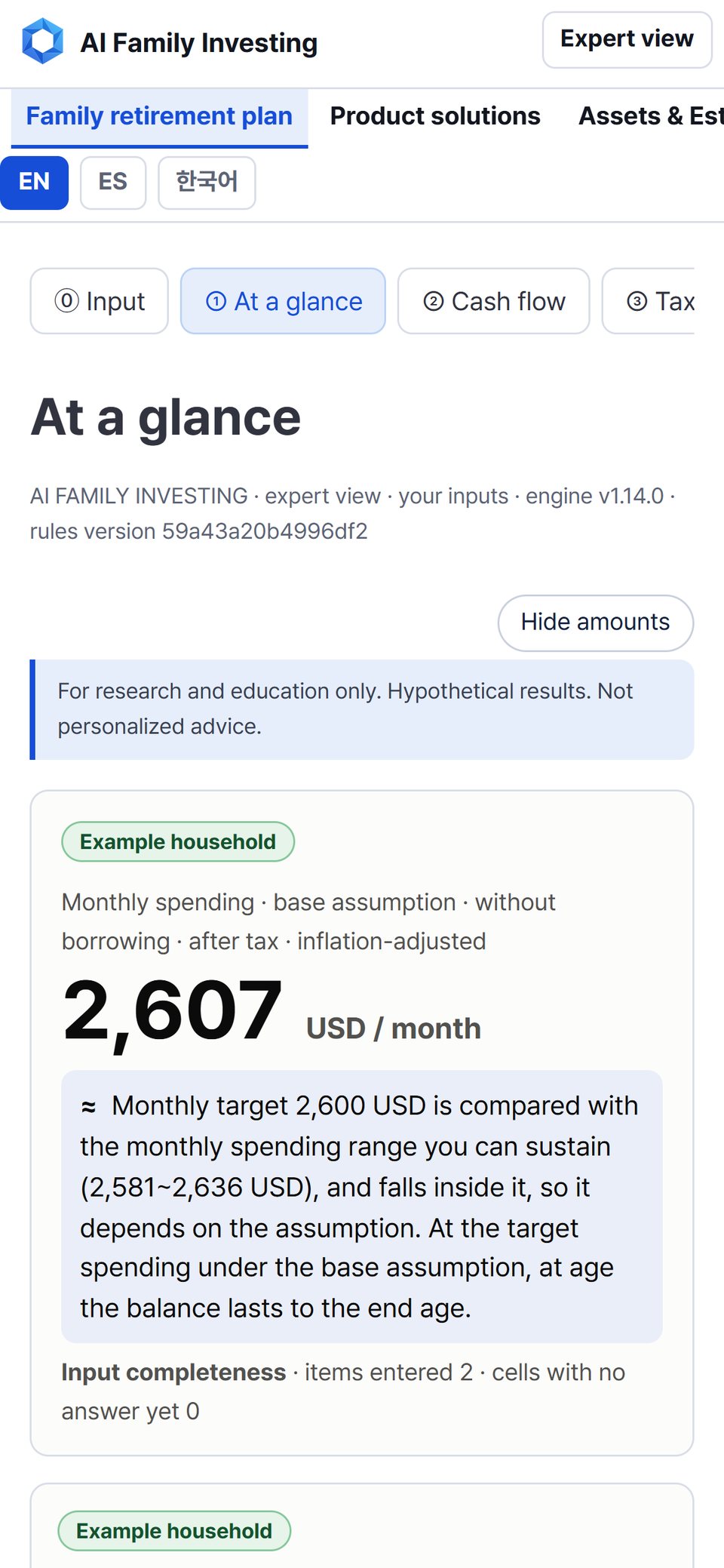
Figure 1-2. Easy view on a phone — "At a glance" - What it shows The first part of the results on a phone: the menus, the row of tabs (swipe sideways for more), and the first number, marked "Example household." - How to read it Scroll down. If the tabs are wider than the screen, swipe them to see the rest. - What it does not say This is the example household the site shows by default. It is not your result.
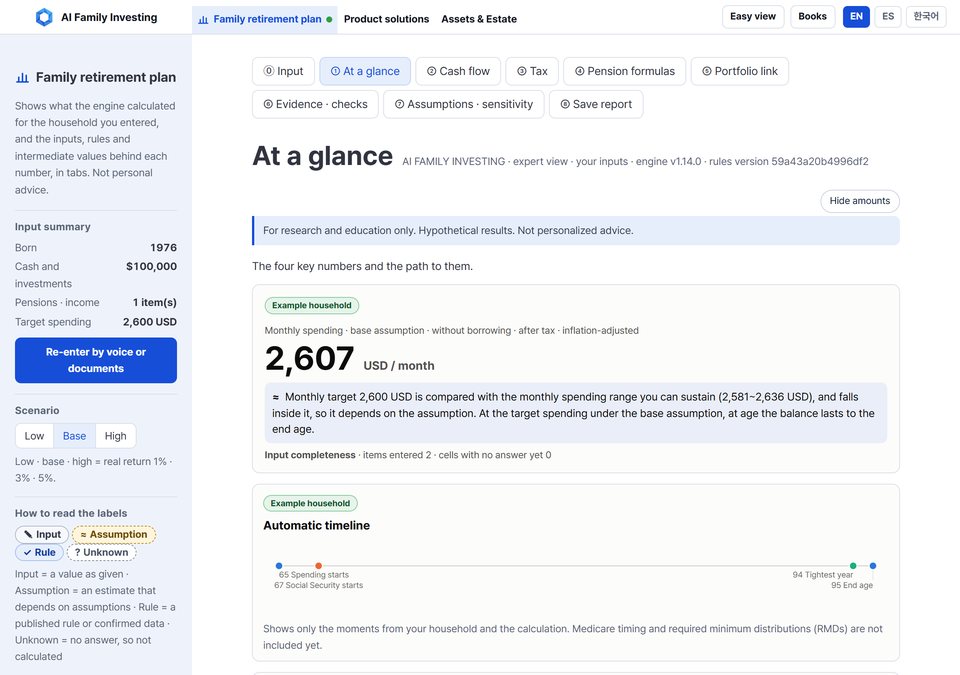
Figure 1-3. Expert view on a computer — "At a glance" - What it shows The same result on a computer: the menus, nine tabs, the "Hide amounts" button, the "Example household" label on the card, the first number, and the "How to read the labels" panel on the left. - How to read it Check the "Example household" label first: example or your own result? Then read the small line above the big number — monthly spending · base assumption · without borrowing · after tax · inflation-adjusted — before the number itself. - What it does not say The $2,607 shown is not what the example household "can safely spend." It is a calculation under chosen assumptions — not your answer, and not a spending recommendation.
1.4 A map of the nine expert tabs
The tab names can look technical. Matched to this book's chapters, they are easy to navigate.
| Tab | What's there | Chapter |
|---|---|---|
| ⓪ Input | Enter by voice, document or typing; check the extracted values | 2, 3 |
| ① At a glance | Four key numbers and how they were reached; automatic timeline | 4 |
| ② Cash flow | Money in and out each year; how long the balance lasts; view by age | 4 |
| ③ Tax | Who taxes which income; the tax steps | 7 |
| ④ Pension formulas | How Social Security and other pensions are set; claiming at different ages | 7 |
| ⑤ Portfolio link | The return your plan needs, next to the past records of published models | 4 |
| ⑥ Evidence · checks | Sources, effective dates and check status of rules; test results; the list of unknowns | 7 |
| ⑦ Assumptions · sensitivity | Three assumption sets; one-step what-if; comparing two ages | 5 |
| ⑧ Save report | Choose what goes into a report and save it to your device | 8 |
The easy view on a phone uses the same tabs with less on each. At first, ① At a glance is all you need.
1.5 The left panel — input summary, scenario, and four labels
On a computer, the panel on the left stays in place on every tab.
Input summary. What household went into the calculation: for the example, born 1976, $100,000 in cash and investments, one pension or income item, and a target of $2,600 a month. If a number looks wrong, look here first. "Re-enter by voice or documents" takes you back to Chapter 2's screens.
Scenario — Low, Base, High. Nobody knows future returns, so the site uses three sets of assumptions instead of one number. The screen says: "Low · base · high = real return 1% · 3% · 5%." Pressing a button shows that scenario. Chapter 5 shows how to change them.
Words worth knowing — real return A return after subtracting inflation. If prices rise, the same dollars buy less, so the site uses "real" figures by default. The plain figure, before inflation is taken out, is called "nominal."
How to read the labels — four marks. You will come back to this panel more than any other. Every number on the site carries one of four marks:
| Mark | What the screen says | How to read it |
|---|---|---|
| ✎ Input | a value as given | a value you (or the example household) entered |
| ≈ Assumption | an estimate that depends on assumptions | moves when an assumption changes |
| ✓ Rule | a published rule or confirmed data | set by published rules, such as law or official tables |
| ? Unknown | no answer, so not calculated | the site left it blank rather than guess |
Get into the habit of reading the mark first. Two numbers of the same size do not carry the same weight: one marked ≈ moves with your assumptions; one marked ? does not exist yet. In a black-and-white print of this book, the symbols (✎ ≈ ✓ ?) still tell them apart.
1.6 The example household
The site opens with an example household (Figure 1-3, the "Example household" label; on the live site a banner at the top says so too — the figures in this book leave it out). It is fictional, made up for explanation, and this book follows it throughout: born 1976, living in the United States, $100,000 in savings, Social Security of $2,500 a month starting at 67, and a monthly spending target of $2,600.
The numbers in this book are what the site showed on the screenshot date. If the engine or its rules are updated, numbers can change, which is why every screen shows the engine version and the rules version. If the book and the screen disagree, compare those first. The point is not that your household should look like the example; it is to learn what each number means.
Excerpt — the question this calculation answers
People approaching retirement end up asking one question. "How much can I spend each month?"
— AI Retirement Investing Book 1, Withdraw Only What the Evidence Supports, Preface · quoted verbatim ·
airetirementinvesting.com/book1/en/?src=book11_en· checked 2026-10-17 The first number on "At a glance" — monthly spending you can sustain — is a calculation that answers exactly this question. The site's method starts from that book; The references at the bottom of the results link to it and the underlying paper.
1.7 Before you start — "Before you start"
The first screen and the top of the Input tab carry the same short notice. On the October 17, 2026 screen it reads:
- "Only when you use 'Describe in words' is the text you write passed to an AI provider (Anthropic). Do not write your name, Social Security number or account numbers."
- "Document files are deleted as soon as they are read. See the privacy notice for details."
That notice is about the Input screen. Across the whole site, there are two routes by which information goes to an outside AI provider. The privacy notice lists both.
| Feature | What is sent | Where |
|---|---|---|
| Describe in words (pulling values from your description) | The description you agreed to send, with name- and number-like text masked | Anthropic |
| The help chat at the bottom right (questions about using the site) | The question you type | Google Gemini (paid service) |
Values you type into the boxes do not go to an outside AI provider. To be calculated, they do go to the site's own calculation engine (the site's server). Whatever route you use, the surest protection is to leave out identifiers — names, government ID numbers, account numbers, phone numbers and full addresses. The amounts, dates and other plain facts the calculation needs are what you do enter. Chapter 17 brings together what the site receives, what it is designed not to keep on its server, and what records remain.
1.8 What the site and this book do not do
The bar at the top of the site and the line under every result say the same thing: "For research and education only. Hypothetical results. Not personalized advice." Above "At a glance," the site spells it out: the results are deterministic results of three assumption sets, not a probability distribution; past results do not promise the future; and the choice is yours.
Words worth knowing — deterministic result A calculation that always gives the same answer for the same assumptions. It does not say "70 times out of 100." That is why the site keeps three assumption sets and shows the range between them.
Before you go on
- On the first screen you choose two things: how to enter and which view.
- The three menus are the three parts of this book. Start with the family retirement plan.
- Read the four marks (✎ ≈ ✓ ?) before the numbers.
- The example household is fictional; the book's numbers are as of the screenshot date.
- Never enter names, government ID numbers, account numbers, phone numbers and full addresses; do enter the amounts and dates the calculation needs. Nothing is calculated until you confirm.